How to create a blog in 2026 is easier than it looks. You do not need to know programming, rent a server, or spend weeks learning web design before you publish your first article. With a domain name, WordPress hosting, WordPress itself, a simple theme, and a few useful plugins, you can build a working blog from scratch.
The tricky part is knowing what to set up first.
A new blogger can quickly get lost between hosting, DNS, WordPress settings, themes, plugins, categories, authors, SEO, analytics, images, backups, and dozens of other small details. This guide puts those tasks in the right order.
By the end, you will know how to create a blog, set up WordPress, create categories and authors, publish your first post, prepare your site for search engines, and keep the website safe.
You can follow this guide even if you have never built a website before.
How to Create a Blog in 2026: What You Need
Before touching WordPress, you need a few basic pieces.
What you need
What it does
Domain name
The address people type to visit your site
Web hosting
Stores your website files and database
WordPress
Runs your blog
WordPress theme
Controls the visual design
Plugins
Add features to WordPress
Categories
Organize your articles
Author account
Shows who wrote each article
SEO tools
Help search engines understand your pages
Analytics
Shows how people find and use your site
Think about a physical shop.
Your domain is the street address. Your hosting is the building. WordPress is the system that runs the shop. Your theme controls how the shop looks, while plugins add useful tools such as contact forms and SEO features.
That simple picture makes the rest of the setup much easier to understand.
How to Choose a Blog Topic Before You Buy Anything
Your blog needs a clear subject.
You can write about almost anything, but a new blog works better when readers know what they can expect from it.
You might create a blog about:
Personal finance
Travel
Cooking
Technology
WordPress
Education
Fitness
Gardening
Books
Photography
Online learning
Career advice
Do not try to cover everything from day one.
A blog called “Everything About Everything” gives readers very little reason to remember it. A blog that teaches beginners how to use WordPress has a much clearer purpose.
Pick a topic you can write about for a year
Ask yourself three questions:
What do I know or want to learn?
What questions do people ask about this topic?
Can I think of at least 30 useful article ideas?
If you can answer all three, you have a good starting point.
You do not need 100 articles before launching. You need a sensible topic and a plan for your first few posts.
How to Choose a Domain Name for Your Blog
Your domain is your website address, such as:
Keep it short, easy to spell, and easy to remember.
A good domain usually has these traits:
Easy to pronounce
Easy to type
Easy to remember
No unnecessary numbers
No strange spelling
No long string of words
Suitable for your future content
Try saying the domain to someone else.
If they ask, “How do you spell that?” every time, pick another name.
Should your keyword be in the domain?
Not always.
You do not need a domain such as:
That gets awkward very quickly.
A short brand name can work just as well if your content clearly explains what the site covers.
Check whether the domain is available before you build your brand around it. Also check whether the name could be confused with another business or trademark.
How to Choose Hosting for a WordPress Blog
Hosting gives your WordPress website a place to live.
When someone visits your domain, the hosting server sends the required website files and data to their browser.
For WordPress, check that your host supports the current WordPress requirements. WordPress currently recommends PHP 8.3 or newer, MySQL 8.0 or newer, or MariaDB 10.11 or newer, along with HTTPS. WordPress also recommends Apache or Nginx, although other suitable server setups can work.
Shared hosting
Shared hosting puts many websites on the same server resources.
It can cost less and work well for small sites. The trade-off is that you may have less control over the server and may need to handle more technical tasks yourself.
Managed WordPress hosting
Managed WordPress hosting takes care of more of the technical work.
The host may handle backups, security checks, updates, caching, staging, and WordPress support.
This can make life much easier for a beginner who wants to spend more time writing and less time fixing server settings.
VPS hosting
A VPS gives you more control over a virtual server.
That sounds impressive until you realize that more control also means more things to learn.
For a first blog, you normally do not need a VPS.
How to Create a Blog With WP Engine
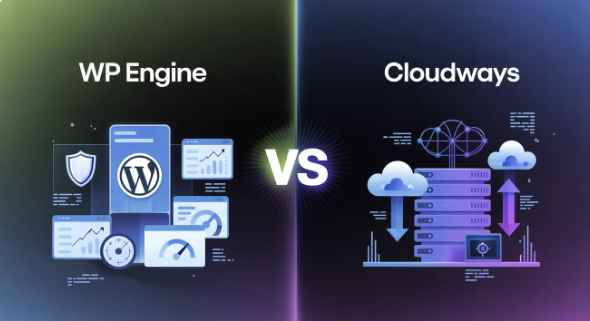
If you want managed WordPress hosting, WP Engine is a reliable provider worth considering.
WP Engine focuses on WordPress hosting and provides tools aimed at people who want less server maintenance. Its current plans include features such as daily and on-demand backups, SSL, staging and development environments, caching through EverCache, security patching, plugin risk scans, and DDoS protection.
WP Engine also provides separate development, staging, and production environments. This lets you test changes away from the live website before publishing them.
That feature becomes very useful when your blog grows.
Imagine installing a new plugin and discovering that it breaks your homepage. With a staging site, you can test changes before making them on the live site.
WP Engine currently lists its Startup plan for small websites and blogs, with pricing and plan limits subject to change. Its current pricing page lists Startup, Professional, Growth, and Scale plans, so check the provider's current plan page before purchasing.
If you are considering WP Engine, check for the latest WP Engine coupons and save up to $350 before you complete your purchase. WP Engine may offer discounts for new customers, and the available deals can vary by plan and time. A current coupon can reduce your initial hosting cost, so it makes sense to check the latest offer before paying.
What to check before buying hosting
Do not choose hosting only because the first-year price looks cheap.
Check:
WordPress support
PHP version
Database version
HTTPS
Backups
Storage
Monthly traffic limits
Customer support
Staging sites
CDN availability
Renewal price
Migration help
Backup restoration options
A cheap plan that gives you headaches every week can cost more in time than a better-managed plan.
Don’t forget to apply a coupon to save on your WP Engine hosting!
How to Install WordPress?
Once your hosting account is ready, you need WordPress.
Many WordPress hosts provide an installer inside the hosting dashboard. The exact buttons differ between providers, but the basic process looks like this:
Log in to your hosting account.
Choose the option to create a WordPress site.
Select your domain.
Enter your site name.
Create your WordPress administrator account.
Set a strong password.
Finish the installation.
Open your WordPress dashboard.
Confirm that your site uses HTTPS.
Update WordPress if an update is available.
WordPress itself is free and open source. Its current documentation recommends PHP 8.3 or newer and MySQL 8.0 or MariaDB 10.11 or newer for new installations.
Your WordPress login will normally look like:
Bookmark that address.
Never use a weak administrator password
Avoid passwords such as:
password123
or:
myblog2026
Use a long, unique password that you do not use on another website.
If your hosting provider and WordPress setup support two-factor authentication, turn it on.
How to Understand the WordPress Dashboard?
When you first log in, the dashboard can look busy.
You do not need to understand everything.
Here are the sections you will use most:
WordPress menu
What it does
Posts
Create blog articles
Pages
Create permanent site pages
Media
Store images and other files
Comments
Manage reader comments
Appearance
Change your site's design
Plugins
Add new functions
Users
Create and manage authors
Settings
Change site settings
Tools
Access extra WordPress tools
Spend 10 minutes clicking through these sections.
You will quickly become familiar with the layout.
How to Set Up Basic WordPress Settings?
Before publishing your first article, check the basic settings.
Go to Settings and review the following.
Site title
Your site title tells visitors and search engines what your website is called.
Keep it clear.
Tagline
A tagline gives a short description of your site.
Do not stuff keywords into it. Write something a real person would understand.
Site language
Choose the language you use for your content.
Timezone
Set your local timezone.
This matters because WordPress uses the site timezone when it schedules posts.
Permalinks
Go to:
Settings → Permalinks
Choose a clean URL structure.
A simple post URL might look like:
This is easier for people to read than:
Your exact WordPress options can vary by version and setup, so look for the setting that creates readable post URLs.
How to Create Blog Categories in WordPress?
Categories help organize your articles.
Suppose you create a technology blog.
You could use:
WordPress
Blogging
SEO
Web Hosting
Online Courses
A visitor can then find several related articles without searching through your entire blog.
Go to:
Posts → Categories → Add New Category
Enter:
Name: WordPress
Then add a short description if your theme or SEO setup uses category descriptions.
WordPress will create a category URL similar to:
How many blog categories should you create?
Start small.
If you have five articles, you probably do not need 25 categories.
A simple rule is to create a category when you expect to publish several useful articles under that subject.
Category vs tag
Categories usually describe the main subject of a post.
Tags can describe smaller details.
Suppose you publish an article called:
How to Install WordPress on WP Engine
The category could be:
WordPress
Possible tags could include:
WordPress hosting
WP Engine
WordPress installation
Do not create tags just because WordPress gives you the option.
Every extra label needs a reason to exist.
How to Create an Author in WordPress?
An author profile tells readers who wrote an article.
To create one, go to:
Users → Add New User
Enter the person's:
Username
Email
Password
First name
Last name
Display name
Biography
Then choose the correct role.
Role
Simple meaning
Administrator
Can control almost the entire site
Editor
Can manage content from multiple writers
Author
Can publish and manage their own posts
Contributor
Can write posts but needs approval to publish
Subscriber
Has very limited access
For a writer who only needs to publish their own articles, Author is usually a much safer choice than Administrator.
Do not give every writer full site access.
Add a useful author bio
A good author bio can say:
Rahul writes beginner-friendly WordPress tutorials and blogging guides. He has been building websites since 2020 and focuses on practical tips that new website owners can follow.
Keep it factual.
Do not write a giant paragraph filled with marketing claims.
Add a real profile photo if appropriate.
How to Create the Important Pages for a New Blog?
Your blog needs more than articles.
Create these pages before you start sending visitors to the site.
About page
Tell readers:
Who runs the site
What the site covers
Who it helps
Why you created it
How you research or create content
Do not turn the About page into a life story unless your personal story is part of the blog.
Contact page
Add a simple contact form.
You can also list a professional email address.
Make it clear why someone should contact you.
Privacy Policy
A privacy policy explains how your site handles personal information.
Your exact requirements depend on where you operate, what data you collect, which services you use, and the laws that apply to your site.
Do not copy another website's privacy policy and replace its name with yours.
Terms and disclaimer pages
These pages may help if your site sells products, uses affiliate links, publishes financial information, gives health information, or provides other advice.
Get suitable legal guidance when your site handles higher-risk topics.
How to Choose a WordPress Theme?
A WordPress theme controls the design of your site.
You can change:
Fonts
Colors
Header
Footer
Menus
Blog layout
Buttons
Page layouts
For your first blog, keep the design simple.
Your readers came for your article, not to admire 47 animated buttons.
Look for a theme that:
Works well on phones
Uses readable fonts
Has a clean blog layout
Receives updates
Supports modern WordPress features
Loads without unnecessary visual effects
Lets you control menus and page layouts
Do not spend three weeks choosing a theme.
Pick a clean one and start publishing.
How to Install WordPress Plugins?
A plugin adds a function to WordPress.
You might install a plugin for:
SEO
Contact forms
Spam protection
Image compression
Security
Backups
Analytics
Redirections
Go to:
Plugins → Add New Plugin
Search for the function you need.
Before installing anything, check:
Who made the plugin
When it was last updated
WordPress compatibility
Reviews
Number of active installations
Support activity
Do not install five plugins that all do the same job.
You also do not need 40 plugins because someone on YouTube told you that “every serious blog needs them.”
Install what your site actually needs.
How to Make Your WordPress Blog SEO-Friendly?
SEO helps search engines understand your content and helps people find pages that answer their searches.
Good SEO starts with useful content.
It does not start with repeating the same keyword 50 times.
Google's guidance recommends creating useful content for people, making pages easy for search engines to understand, writing clear titles and descriptions, and making links easy to crawl.
Choose one main topic for each article
Suppose your article is about WordPress categories.
Your main search phrase could be:
how to create categories in WordPress
Related phrases might include:
WordPress categories
create a category in WordPress
WordPress category settings
how WordPress categories work
category vs tag in WordPress
Use these naturally.
You do not need to force every phrase into every paragraph.
Write a useful SEO title
A good title tells readers exactly what they will learn.
Weak:
My Thoughts About WordPress
Better:
How to Create Categories in WordPress: Beginner's Guide
The second title gives the reader a clear reason to click.
Use headings correctly
Use one H1 for the main page title.
Use H2 headings for major sections.
Use H3 headings when you need smaller sections inside an H2.
Example:
How to Start a WordPress Blog?
How to Choose Hosting
What to Check Before Buying Hosting
This creates a clear content structure.
Keep URLs short
Good:
Less useful:
Your URL does not need to contain every word from your title.
Write a useful meta description
A meta description gives search engines and searchers a short description of your page.
For this article, a suitable description could be:
Learn how to create a blog in 2026 with WordPress, hosting, categories, authors, SEO, plugins, analytics, and a step-by-step setup guide for beginners.
Write for people first.
Add internal links
Internal links connect one page on your site to another.
Suppose you publish:
How to Start a Blog
How to Install WordPress
How to Choose WordPress Hosting
How to Create WordPress Categories
Your first article can link to the other three.
This helps readers discover related content and gives search engines more context about your site.
Add external links when they help
Link to trustworthy sources when you refer to technical requirements, standards, official documentation, research, or other facts.
For WordPress technical instructions, WordPress.org is a strong starting source.
How to Write Your First Blog Post?
Now comes the fun part.
Go to:
Posts → Add New Post
Start with one clear question.
For example:
How do I install WordPress on my new hosting account?
Then build the article around that question.
A simple article structure is:
Introduction
What you need
Step-by-step instructions
Common mistakes
Helpful tips
Frequently asked questions
Short conclusion
Do not write 3,000 words just because someone said long articles rank better.
Write enough to answer the question properly.
A 1,200-word guide that solves the reader's problem can be better than a 4,000-word article that keeps repeating itself.
How to Add a Featured Image?
WordPress lets you set a featured image for a post.
This image may appear:
On your blog homepage
On category pages
In related posts
On social platforms
Inside the article, depending on your theme
Use a clear image that matches the topic.
Before uploading it, give the file a useful name.
Instead of:
IMG_827364.jpg
use something like:
wordpress-category-guide.jpg
The file name is not a magic SEO trick. It simply keeps your media library organized.
Add useful alt text
Alt text describes an image for people who cannot see it.
Bad:
wordpress
Better:
WordPress Posts menu showing the Categories option
Do not fill alt text with keywords that have nothing to do with the image.
How to Create a Blog Menu
Your main menu should help visitors reach the most useful areas of your site.
A new blog might use:
Home
Blog
Categories
About
Contact
You can add category links when they make sense.
Keep the menu short.
A visitor should not need a treasure map to find your articles.
How to Set Up Google Search Console
Google Search Console helps you see how Google finds and displays your site.
You can use it to check things such as:
Search queries
Impressions
Clicks
Indexed pages
Sitemap status
Search visibility
Some technical problems
After your site is ready, verify ownership in Google Search Console.
Then submit your sitemap.
Many WordPress SEO tools create a sitemap automatically.
A sitemap may look similar to:
or:
The exact address depends on your WordPress setup and plugins.
Submitting a sitemap does not guarantee that every page will rank or appear in Google. It simply gives Google another way to discover your pages.
How to Set Up Analytics
An analytics tool can tell you where visitors come from and which pages they visit.
You might want to know:
How many people visit
Which articles attract visitors
Which search terms bring traffic
How people reach your site
Which pages receive the most attention
Do not stare at analytics every hour.
Your first month may have very little traffic.
That is normal.
Use the information to improve your content rather than checking the visitor count like a stock ticker.
How to Create a Sitemap for WordPress
Modern WordPress installations can create XML sitemaps without requiring a separate sitemap plugin.
The sitemap gives search engines a list of URLs they can discover.
You should check your sitemap after installing SEO plugins because some plugins may change how sitemap files work.
Open the sitemap in your browser.
If you see a list of your site's URLs, the sitemap is working.
Then submit the sitemap through Google Search Console.
How to Keep Your WordPress Blog Fast
A slow site can frustrate visitors.
Start with simple steps.
Compress images
Large images can make pages heavy.
Resize images before uploading them when practical, and use modern image formats when your setup supports them.
Avoid too many plugins
Every plugin adds code or features.
Some plugins may also add scripts that your pages do not need.
Use fewer, well-maintained plugins.
Use caching
Caching stores ready-to-serve versions of content so your server does not need to rebuild every page from scratch for every visitor.
Many managed WordPress hosts include caching.
WP Engine, for example, includes its EverCache system and CDN features with its current hosting plans.
Test your site on a phone
Do this before publishing.
Open your website on your phone and check:
Can you read the text?
Does the menu work?
Do images fit the screen?
Can you click buttons?
Does the contact form work?
Does the article look clean?
A desktop design that looks great can still be annoying on a small screen.
How to Keep a WordPress Blog Secure
You do not need to become a cybersecurity expert.
Start with the basics.
Use HTTPS. WordPress currently lists HTTPS as a requirement for WordPress installations.
Update WordPress. Keep WordPress, themes, and plugins current.
Use strong passwords. Never reuse your WordPress administrator password elsewhere.
Limit administrator accounts. Give people only the access they need.
Keep backups. A backup gives you a way back if something goes wrong.
WP Engine currently provides automated backups across its environments, along with restore tools. Its June 2026 documentation says backups are stored offsite and that customers can restore earlier backup checkpoints.
Use staging when available. Test major changes before putting them on your live site.
Remove unused plugins and themes. If you do not need something, remove it rather than leaving it forgotten.
How to Create an LMS Blog With WordPress
You may hear the term LMS, which means Learning Management System.
An LMS turns a WordPress site into a place where people can take courses.
You might use an LMS if your blog teaches:
Coding
Languages
Photography
Marketing
School subjects
Business skills
Music
Professional training
An LMS can add:
Courses
Lessons
Quizzes
Student accounts
Progress tracking
Course access rules
Paid courses
You do not need an LMS just because you have a blog.
If your website only publishes articles, WordPress alone may be enough.
Add an LMS when teaching structured courses becomes a real part of the site.
A simple setup could look like:
WordPress → LMS plugin → Course → Lessons → Quiz → Student account
Keep your blog and course content connected.
You could publish a free article called:
How to Learn WordPress
Then link readers to a more detailed paid or free course if you later create one.
How to Organize Your Blog as It Grows
Your site may start with five articles.
A year later, it could have 100.
This is where organization starts to matter.
Keep a simple structure.
For a blogging site, you might have:
Blogging
How to Start a Blog
How to Choose a Domain
How to Write a Blog Post
WordPress
How to Install WordPress
How to Create Categories
How to Create Authors
SEO
SEO for Beginners
How to Write SEO Titles
How to Add Internal Links
This creates groups of related articles.
Link related articles to each other.
If you update an old article, check its links too.
A broken link from three years ago can quietly ruin a perfectly good page.
How Much Does It Cost to Start a Blog in 2026?
The cost depends on what you choose.
Item
Do you need it?
Typical purpose
Domain
Yes
Website address
Hosting
Yes
Stores your website
WordPress
Yes
Runs the blog
Theme
Yes
Controls design
Plugins
Some
Adds features
Recommended
Professional contact
Analytics
Recommended
Measures visitors
LMS
Only for courses
Runs online learning
Premium images
Optional
Adds visual content
WordPress itself is free.
Your main costs usually come from the domain and hosting.
Premium themes, plugins, email services, image libraries, and LMS tools can add to the bill.
Hosting prices change, so check the provider's current price before paying. WP Engine's current pricing page, for example, lists its plans and current limits directly.
Common Mistakes New Bloggers Make
Installing too many plugins
More plugins do not automatically make a better website.
Creating too many categories
Five useful categories are better than 30 empty ones.
Choosing a theme before choosing a topic
Your content should shape your design, not the other way around.
Publishing copied content
Create your own material.
If you use facts from another source, cite the source and add your own useful explanation.
Ignoring mobile visitors
Always check your site on a phone.
Using giant images
Large images can slow pages down.
Forgetting backups
A backup is boring until you need one.
Then it suddenly becomes your favorite feature.
Changing URLs without a plan
If you change an article's URL after Google and other sites have discovered it, set up a suitable redirect from the old address to the new one.
Stuffing keywords
Do not write:
The best WordPress blog is the best WordPress blog because this WordPress blog is the best WordPress blog for WordPress blogging.
Nobody wants to read that.
Use the phrase where it makes sense and focus on answering the searcher's question.
How to Create a Blog in 2026: Your First-Publishing Checklist
Before you publish your first article, check each item.
Choose your blog topic
Choose a domain name
Buy hosting
Connect the domain
Install WordPress
Confirm HTTPS
Set the site title
Set the timezone
Set readable permalinks
Choose a simple theme
Create your About page
Create your Contact page
Add your Privacy Policy
Create your blog categories
Create author accounts
Install only the plugins you need
Set up SEO
Create your first article
Add a featured image
Add useful alt text
Add internal links
Add trustworthy external sources
Choose the correct category
Add the correct author
Write the SEO title
Write the meta description
Check the URL
Check the article on a phone
Test your contact form
Set up Google Search Console
Submit your sitemap
Set up analytics
Confirm backups
Publish
What to Do After You Publish Your First Blog Post
Do not expect hundreds of visitors on day one.
Your first job is to build a useful library of content.
During your first month, focus on publishing helpful articles around the same broad topic.
You might publish two or three useful articles each week if you can maintain that schedule without sacrificing quality.
After publishing, revisit older articles.
Look for:
Outdated information
Broken links
Missing images
Weak introductions
Missing internal links
Poor headings
Questions that readers may still have
Search Console can also show which searches bring people to your pages.
Use those findings when planning new articles.
How to Create a Blog in 2026: A Simple 30-Day Plan
You do not need to finish everything in one night.
Week 1: Build the website
Choose your topic, buy your domain and hosting, install WordPress, select a theme, and configure the basic settings.
Week 2: Organize the site
Create your About and Contact pages.
Create your categories.
Set up your author profile.
Install the plugins you actually need.
Week 3: Create content
Write your first three to five articles.
Give each article a clear purpose.
Add internal links between related posts.
Week 4: Prepare for search
Connect Search Console.
Submit your sitemap.
Set up analytics.
Check mobile pages.
Review your titles, URLs, images, and internal links.
Then keep publishing.
Final Thoughts on How to Create a Blog in 2026
How to create a blog in 2026 comes down to a clear sequence: choose a topic, buy a domain, select reliable hosting, install WordPress, set up the site, organize your categories and authors, publish useful content, and prepare the site for search.
You do not need to learn everything before you begin.
Start with the basics.
For a beginner who wants managed WordPress hosting, WP Engine is one option worth looking at because its current platform includes features such as backups, SSL, staging, caching, security tools, and WordPress-focused hosting.
Once WordPress is running, the most valuable thing you can do is publish useful content that answers real questions.
Your first blog will not be perfect.
It does not need to be.
Build the basic site, publish the first article, learn what readers need, and improve the site as you go. That is how a blank domain turns into a real blog.


Write a comment ...